What this guide covers
We are bringing all team groups into one Blyth Town FC WhatsApp Community. Follow these steps to prepare your group and submit it for approval. Should take about 5 minutes.
How it works
Coach
Prepare your group - name, description, permissions, two admins
Coach
Suggest your group to the Blyth Town FC community
Club
Club admin reviews and approves the request
Done
Your group is part of the community
Steps to complete
1
Check Your Group Name
▾
Your group name must follow this format exactly, including the hyphens and the season.
Format
Blyth Town [Age Group] - [Gender] [Colour] - 26/27Example
Blyth Town U13 - Girls Blues - 26/27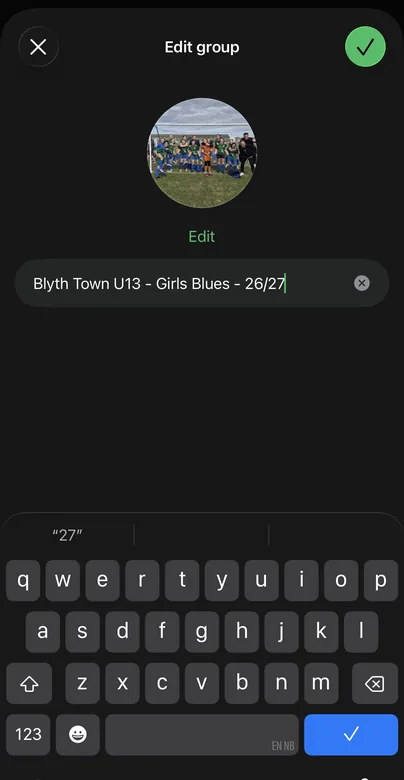
Tap the pencil icon to edit the name
- Open the group chat
- Tap the group name at the top of the screen
- Tap the pencil icon next to the group name
- Update to match the format above exactly
- Tap the green tick to save
2
Add a Group Description
▾
The description is visible to anyone in the community. Keep it to the format below.
Format
Blyth Town [Age Group] - [Gender] [Colour] - 26/27. Coaches: [Name] and [Name]. Parents and coaching staff only.Example
Blyth Town U13 - Girls Blues - 26/27. Coaches: Andrew Warden and Ryan Cowell. Parents and coaching staff only.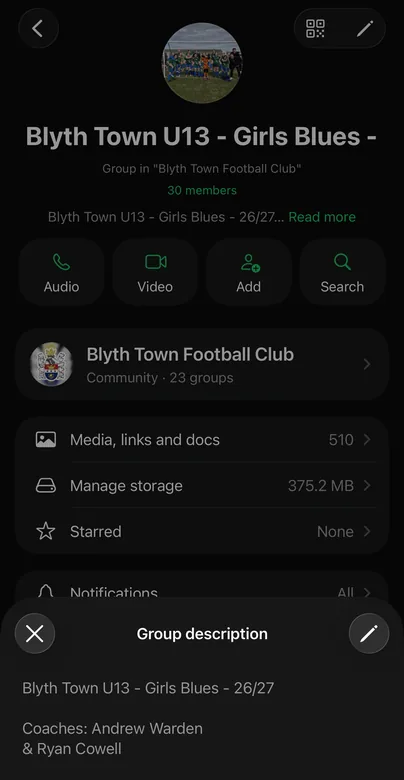
Tap the pencil to edit the description
- Open the group chat
- Tap the group name at the top
- Tap the pencil icon next to the description field
- Type your description using the format above
- Tap Save
3
Check Group Permissions
▾
Match your permissions to this screen before submitting.
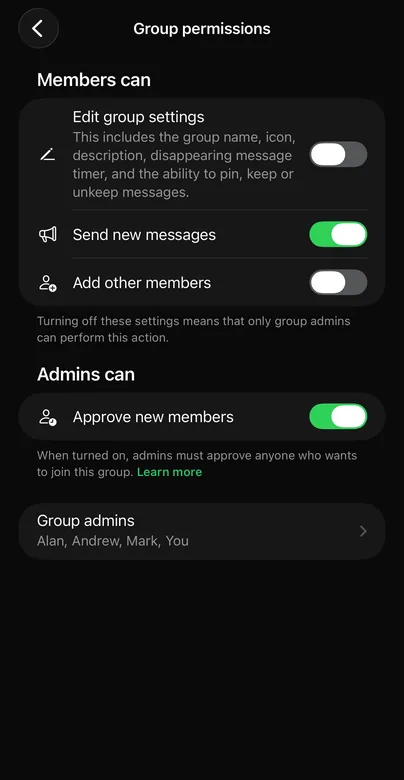
Your settings should match this exactly
- Open the group chat and tap the group name
- Scroll down and tap Group permissions
- Edit group settings- off
- Send new messages- on
- Add other members- off
- Approve new members- on
Why approve new members?Stops anyone joining via a shared link without an admin checking them first. Essential for junior groups.
4
Make Sure You Have a Second Admin
▾
Every group needs at least two admins. If you are the only one and lose your phone or leave the group, nobody can manage it.
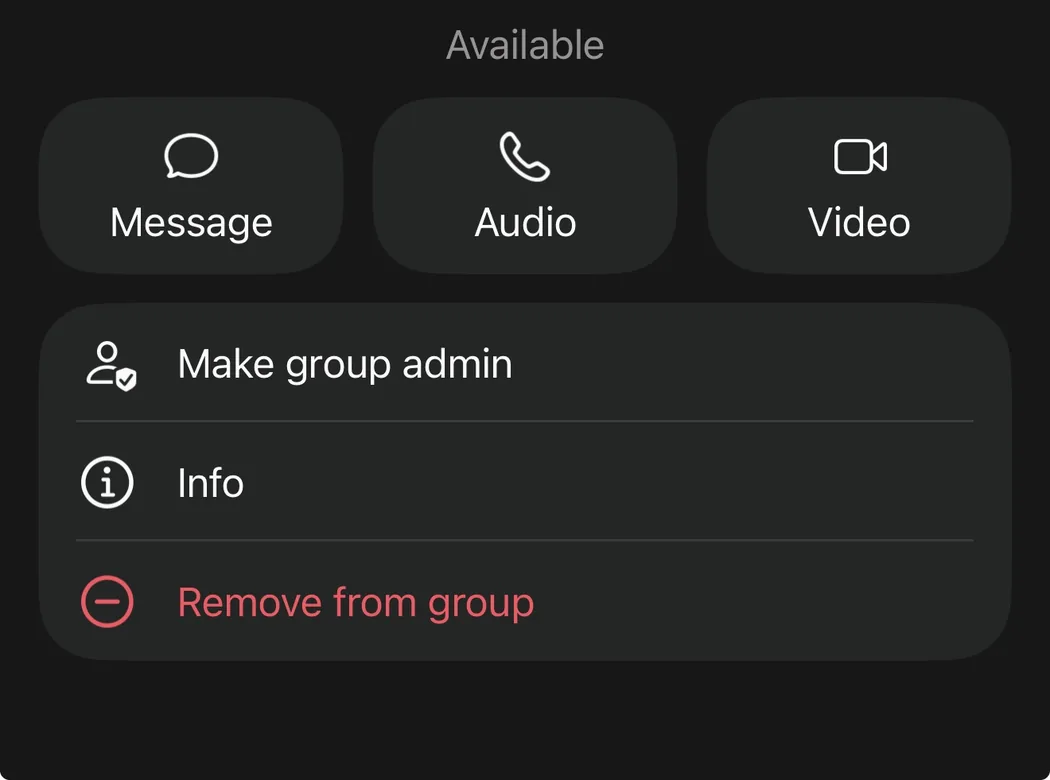
Tap a member then select Make group admin
- Open the group chat and tap the group name
- Scroll down to the members list
- Tap the name of the person you want to make admin
- Tap Make group admin
Who to make admin:Your assistant coach or a trusted parent. Not a player.
5
Suggest Your Group to the Community
▾
Once your group is ready, suggest it to the Blyth Town FC community. A club admin will review and approve it.
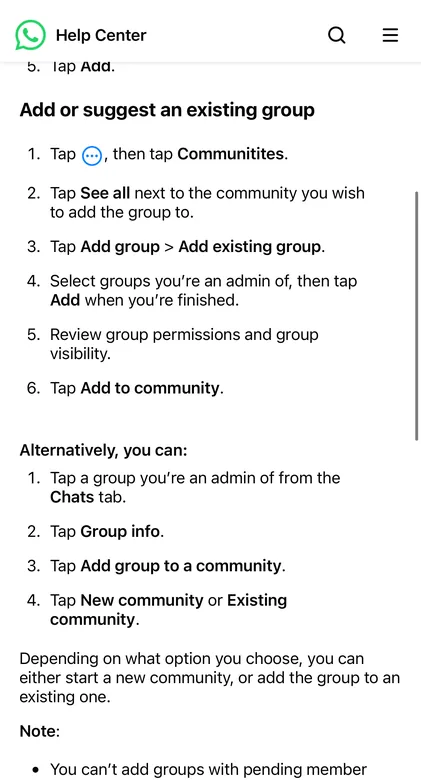
Tap Add group then Add existing group
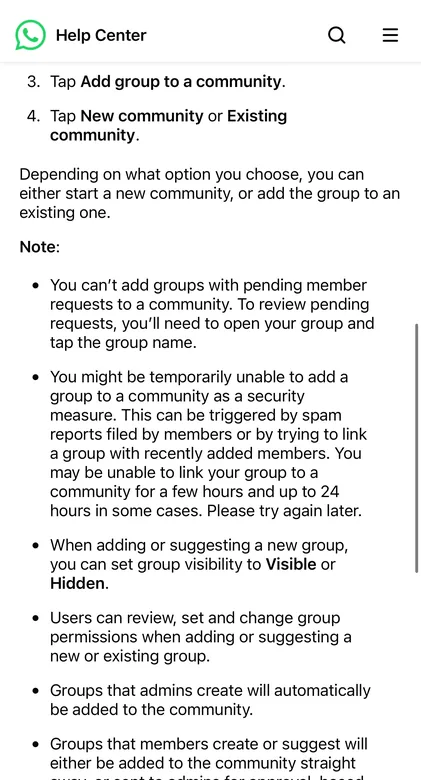
Select your group and tap Add to community
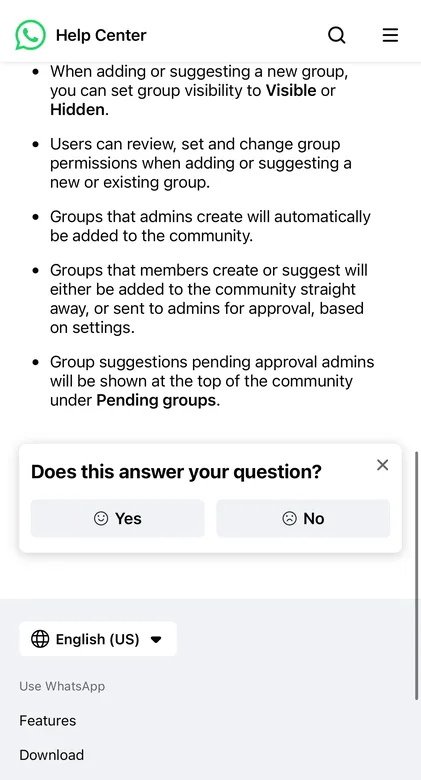
Pending requests shown to club admin for approval
Via the Communities tab:
- Open WhatsApp and tap the Communitiesicon
- Tap See allnext to Blyth Town Football Club
- Tap Add groupthen Add existing group
- Select your group from the list
- Review permissions and visibility settings
- Tap Add to communityto submit
Or from inside your group:
- Open the group chat and tap the group name
- Tap Add group to a community
- Tap Existing community
- Select Blyth Town Football Club and confirm
What happens next:The club admin will see your request under Pending groups and approve it. You will get a notification when it is done.
Your checklist
Tick these off before submitting
- ✓Group name follows the format - Blyth Town [Age] - [Gender] [Colour] - 26/27
- ✓Group description added with coach names and season
- ✓Group permissions set correctly
- ✓At least two group admins confirmed
- ✓Group suggested to Blyth Town FC community
Questions? Contact Lisa Lynn - secretary@blythtownfc.com